> ## Documentation Index
> Fetch the complete documentation index at: https://docs.quantumproxies.net/llms.txt
> Use this file to discover all available pages before exploring further.
# Create your account
> To start using Quantum Proxies, you’ll need to create an account in https://dash.quantumproxies.net.
## Registration Options
We offer two simple options for signing up: **Email/Password** or **Discord**.
### Option 1: Email & Password
This method is recommended if you prefer using a traditional login.
 1. Go to the Sign Up Page([https://dashboard.quantumproxies.com/signup](https://dashboard.quantumproxies.com/signup)).
2. Enter your **email address** and **secure password**.
3. Confirm your email address by clicking the verification link sent to your inbox.
4. Log in with your credentials at Dashboard Login [https://dashboard.quantumproxies.com/login](https://dashboard.quantumproxies.com/login)).
* Standard and secure login method.
* Easy recovery via email if you forget your password.
* Suitable for business accounts that require multiple team members.
### Option 2: Discord login
This method is perfect if you already use Discord and want a one-click login.
1. Go to the Sign Up Page([https://dashboard.quantumproxies.com/signup](https://dashboard.quantumproxies.com/signup)).
2. Enter your **email address** and **secure password**.
3. Confirm your email address by clicking the verification link sent to your inbox.
4. Log in with your credentials at Dashboard Login [https://dashboard.quantumproxies.com/login](https://dashboard.quantumproxies.com/login)).
* Standard and secure login method.
* Easy recovery via email if you forget your password.
* Suitable for business accounts that require multiple team members.
### Option 2: Discord login
This method is perfect if you already use Discord and want a one-click login.
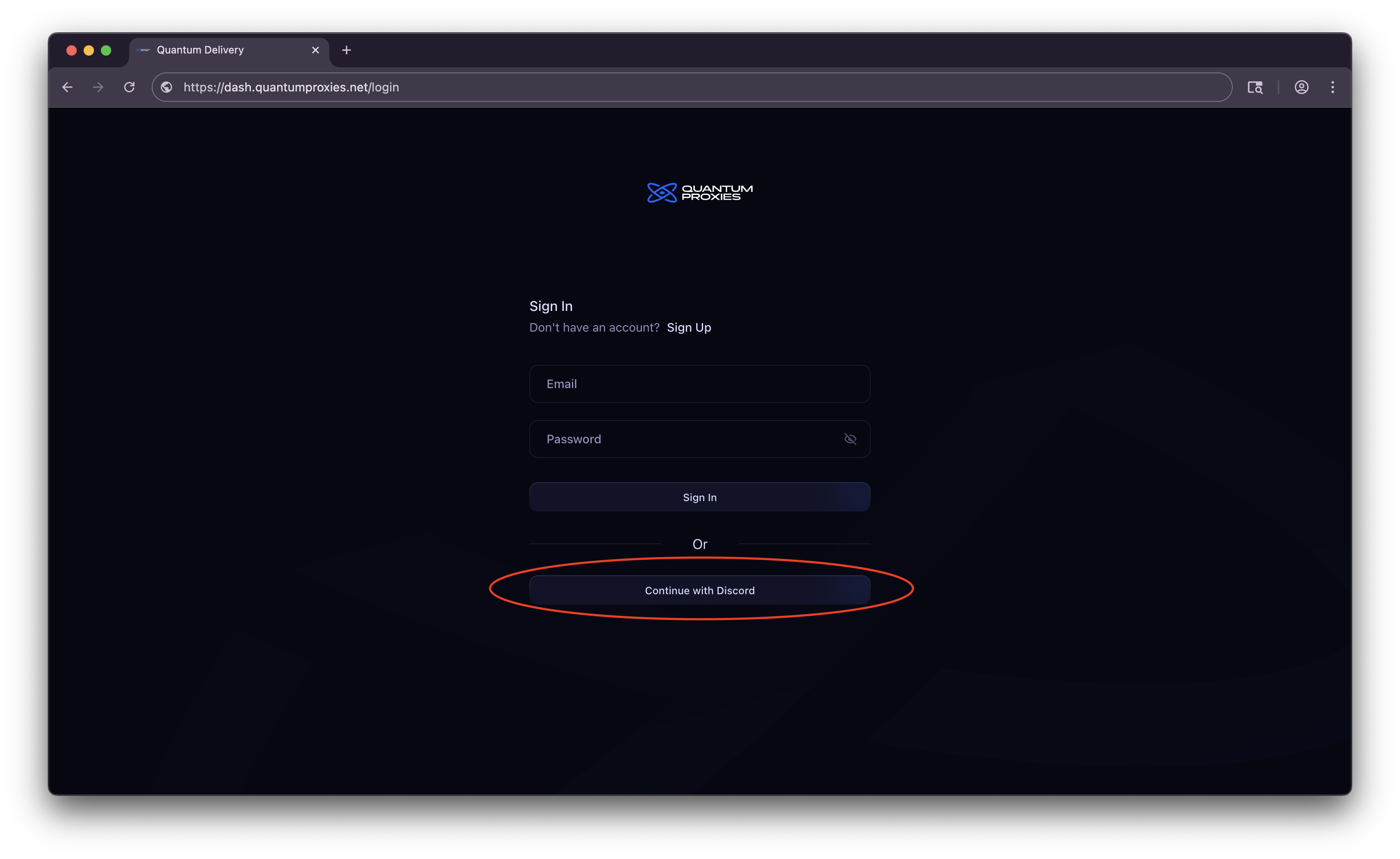 1. Click **Continue with Discord** on the Sign Up Page ([https://dash.quantumproxies.com/login](https://dash.quantumproxies.com/login)).
2. You’ll be redirected to Discord’s OAuth page.
3. Authorize Quantum Proxies to access your Discord account (we only request minimal details to authenticate you).
4. Once authorized, you’ll be redirected back to the dashboard and your account will be created automatically.
* Quick sign-in with no password to remember.
* Secure authentication handled directly by Discord.
* Perfect for users who want to manage their proxies alongside their Discord bot usage.
## Switching Between Login Methods
If you signed up with **Email/Password**, you can later connect your Discord account in **Account Settings**.
1. Click **Continue with Discord** on the Sign Up Page ([https://dash.quantumproxies.com/login](https://dash.quantumproxies.com/login)).
2. You’ll be redirected to Discord’s OAuth page.
3. Authorize Quantum Proxies to access your Discord account (we only request minimal details to authenticate you).
4. Once authorized, you’ll be redirected back to the dashboard and your account will be created automatically.
* Quick sign-in with no password to remember.
* Secure authentication handled directly by Discord.
* Perfect for users who want to manage their proxies alongside their Discord bot usage.
## Switching Between Login Methods
If you signed up with **Email/Password**, you can later connect your Discord account in **Account Settings**.
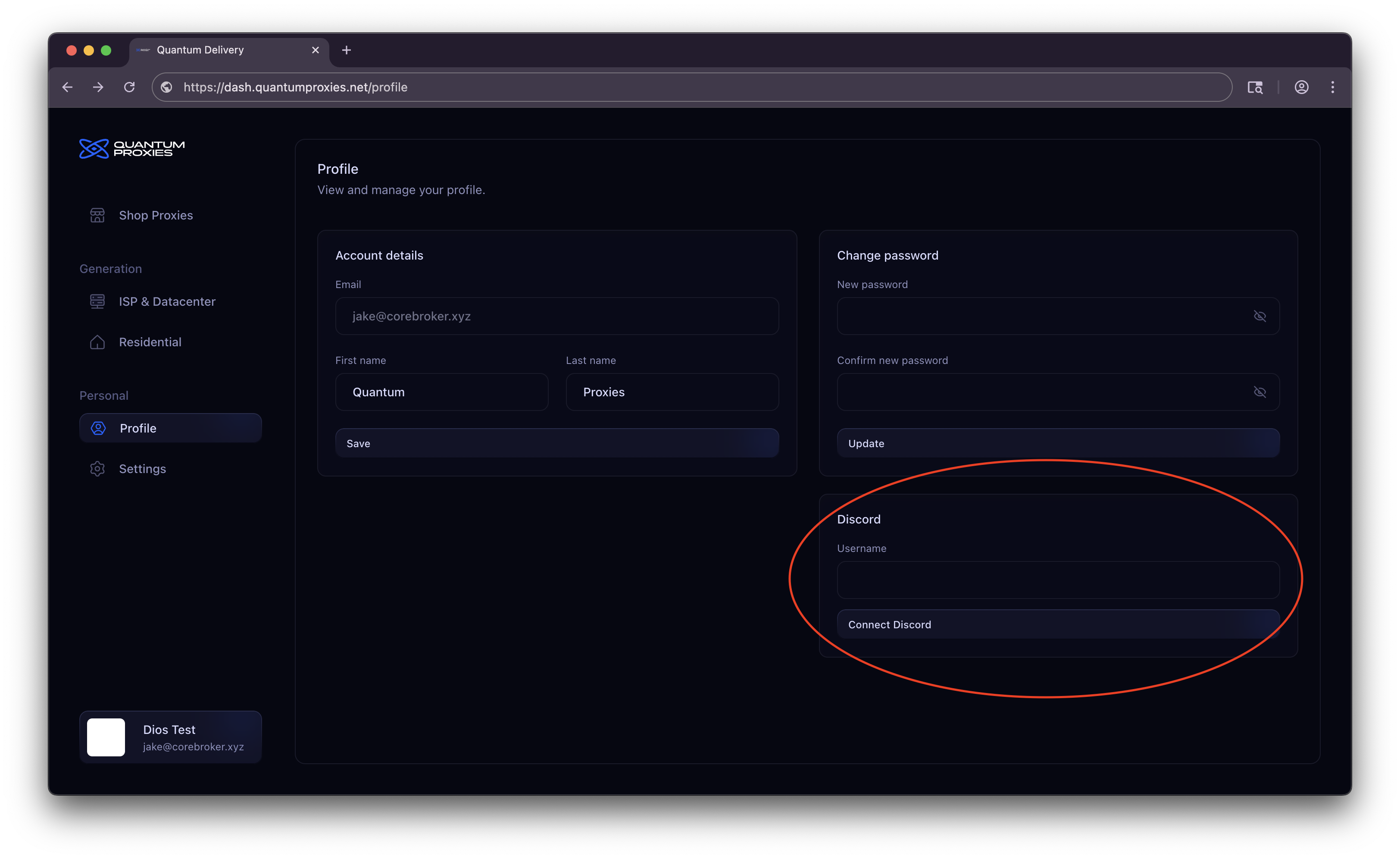 If you signed up with **Discord**, you can also add an **email/password backup login** for more flexibility.
## Next Steps
**Need help?** See our [full documentation](https://mintlify.com/docs) or join our [community](https://discord.gg/Hhg94t6JRG).
If you signed up with **Discord**, you can also add an **email/password backup login** for more flexibility.
## Next Steps
**Need help?** See our [full documentation](https://mintlify.com/docs) or join our [community](https://discord.gg/Hhg94t6JRG).