> ## Documentation Index
> Fetch the complete documentation index at: https://docs.quantumproxies.net/llms.txt
> Use this file to discover all available pages before exploring further.
# Generating Residential Proxies
> Once you’ve purchased a Residential plan, you’ll need to generate proxies before you can use them. This process is handled directly in the Dashboard
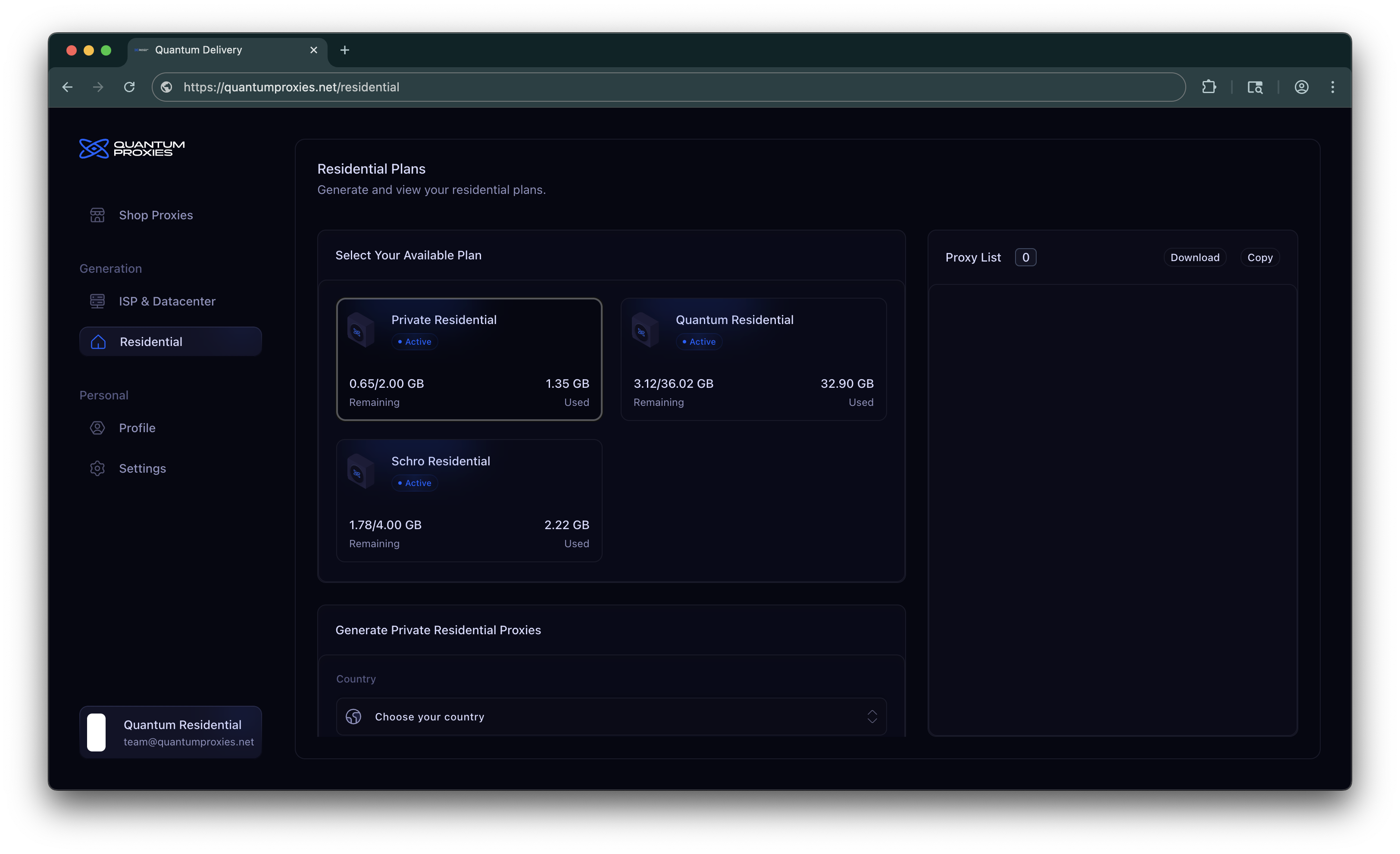
Navigate to Dashboard → Residential. \
You’ll see all active plans displayed, with remaining bandwidth and used bandwidth.
Choose the plan you want to use:
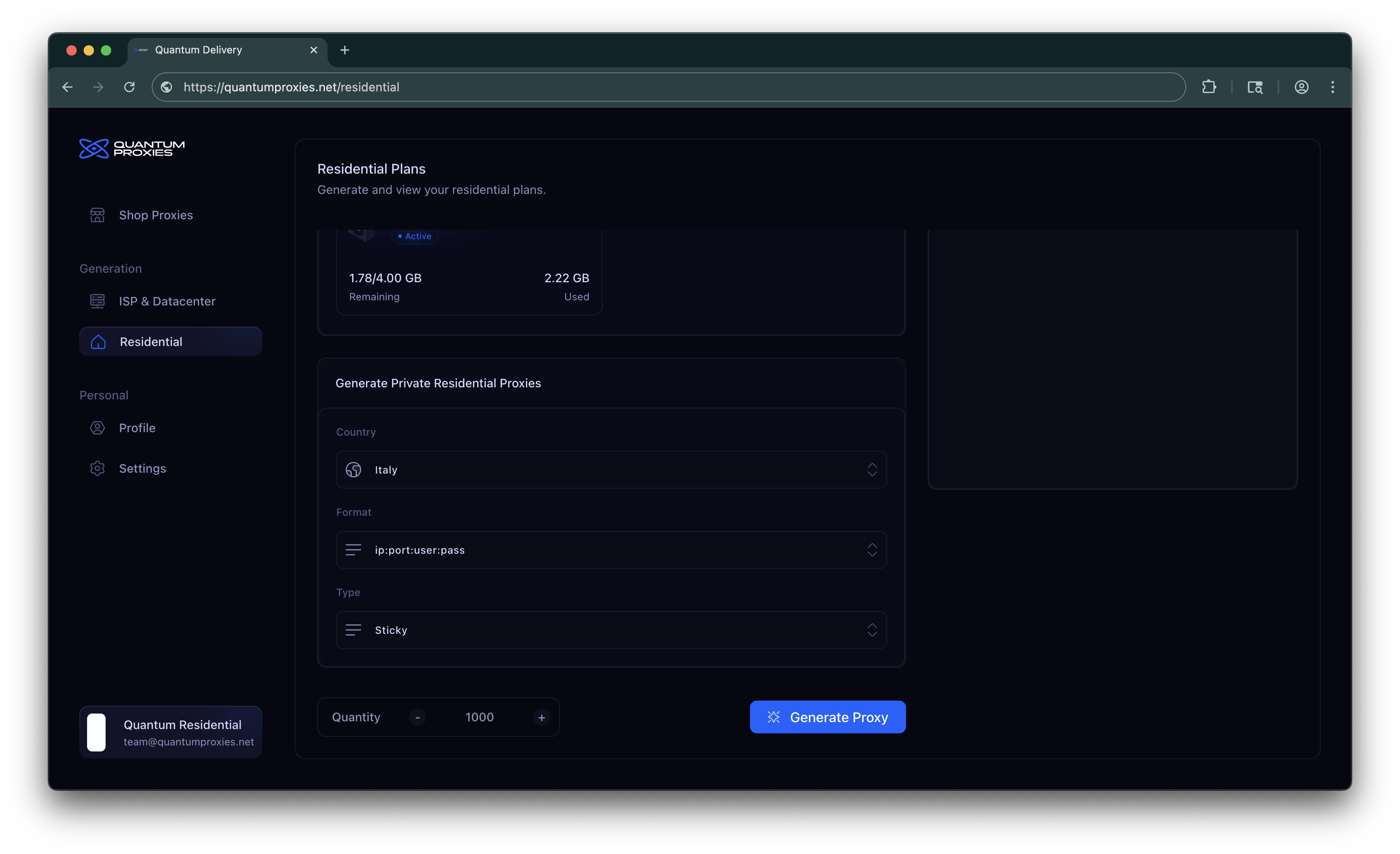
 In the ***Generate Pool Name Residential Proxies*** panel, you can customize:
* **Country** → Choose the country you want your proxies to come from.
* **Format** → Decide how they are displayed (e.g., `ip:port:user:pass`).
* **Type** → Select **Rotating** (change automatically) or **Sticky** (hold the same IP for a period).
* **Quantity** → How many proxies to generate in one batch (Up to 5000 proxies).
In the ***Generate Pool Name Residential Proxies*** panel, you can customize:
* **Country** → Choose the country you want your proxies to come from.
* **Format** → Decide how they are displayed (e.g., `ip:port:user:pass`).
* **Type** → Select **Rotating** (change automatically) or **Sticky** (hold the same IP for a period).
* **Quantity** → How many proxies to generate in one batch (Up to 5000 proxies).
 Click **Generate Proxy** and your proxies will appear in the **Proxy List**.
From there, you can:
* **Copy** them to clipboard.
* **Download** them as a `.txt` file.
You can check your **total** and **daily** usage:
* Total usage is showing in "Remaining" section of every Residential plan box.
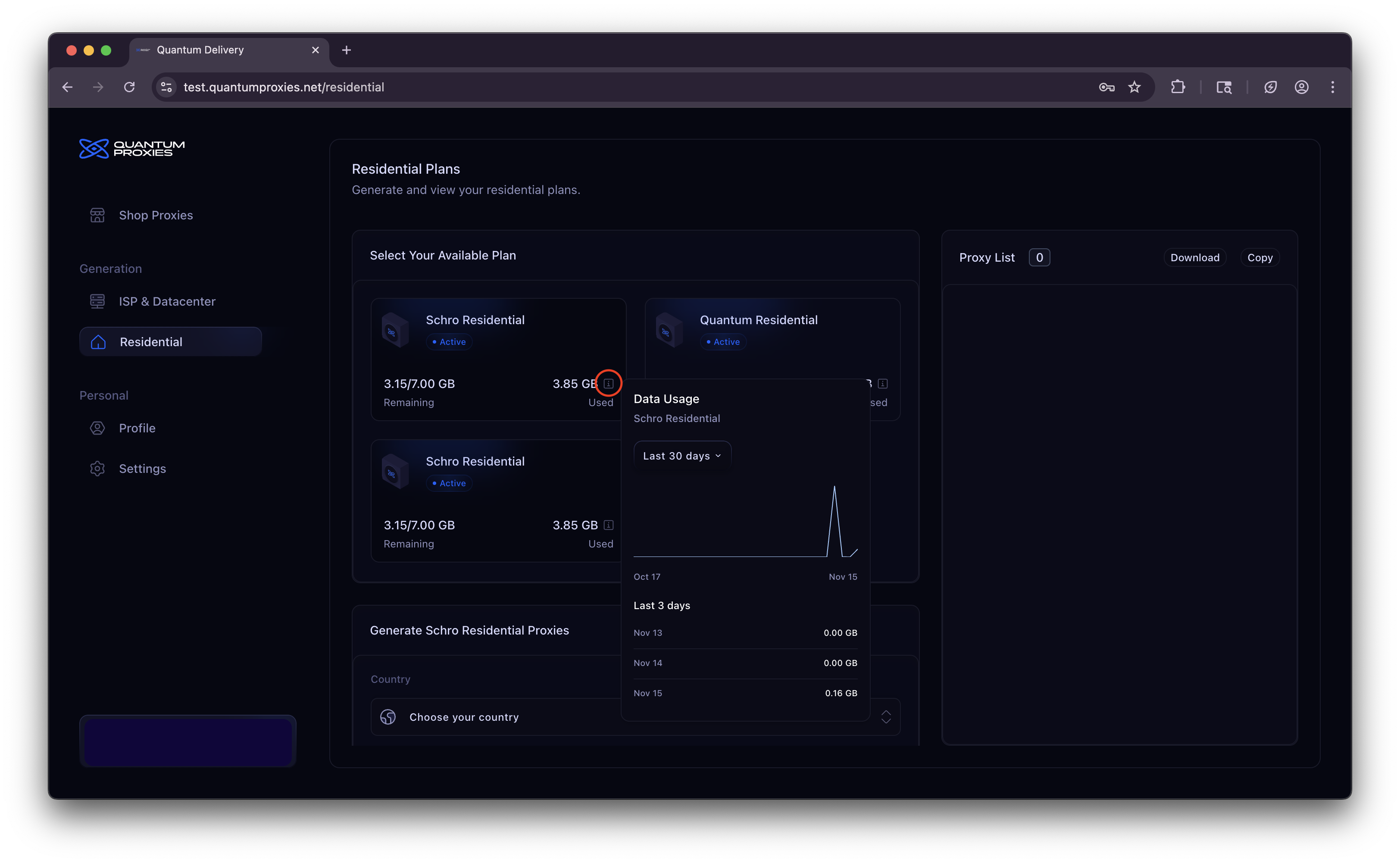
* Daily usage is showing when clicking the "(i)" icon in the "Used" sectin of every Residential plan box. In some Residential plans you are able to check daily usage of the last 30/60/90 days.
Click **Generate Proxy** and your proxies will appear in the **Proxy List**.
From there, you can:
* **Copy** them to clipboard.
* **Download** them as a `.txt` file.
You can check your **total** and **daily** usage:
* Total usage is showing in "Remaining" section of every Residential plan box.
* Daily usage is showing when clicking the "(i)" icon in the "Used" sectin of every Residential plan box. In some Residential plans you are able to check daily usage of the last 30/60/90 days.
 Tip: Generating a proxy doesn’t consume bandwidth. Bandwidth is only used once traffic flows through it.
## Resetting your proxy credentials
If your proxy username and password leak, or you just want to rotate them, you can regenerate the credentials for a plan from **Dashboard → Settings → Reset Proxy Authentication**.
Go to **Dashboard → Settings**. The **Reset Proxy Authentication** card lists each of your active residential plans.
A new password is generated for that plan instantly. Newly generated proxies will use the updated credentials.
Resetting credentials **immediately invalidates every proxy you generated before the reset** for that plan. After resetting, head back to **Dashboard → Residential** and generate a fresh batch.
Tip: Generating a proxy doesn’t consume bandwidth. Bandwidth is only used once traffic flows through it.
## Resetting your proxy credentials
If your proxy username and password leak, or you just want to rotate them, you can regenerate the credentials for a plan from **Dashboard → Settings → Reset Proxy Authentication**.
Go to **Dashboard → Settings**. The **Reset Proxy Authentication** card lists each of your active residential plans.
A new password is generated for that plan instantly. Newly generated proxies will use the updated credentials.
Resetting credentials **immediately invalidates every proxy you generated before the reset** for that plan. After resetting, head back to **Dashboard → Residential** and generate a fresh batch.